These days people can have hundreds of online accounts, but only a handful of these contain personal information that they want to protect with a slug.
Hence, Password Slug is designed to stay out of your way and only trigger on login forms that are important to you.
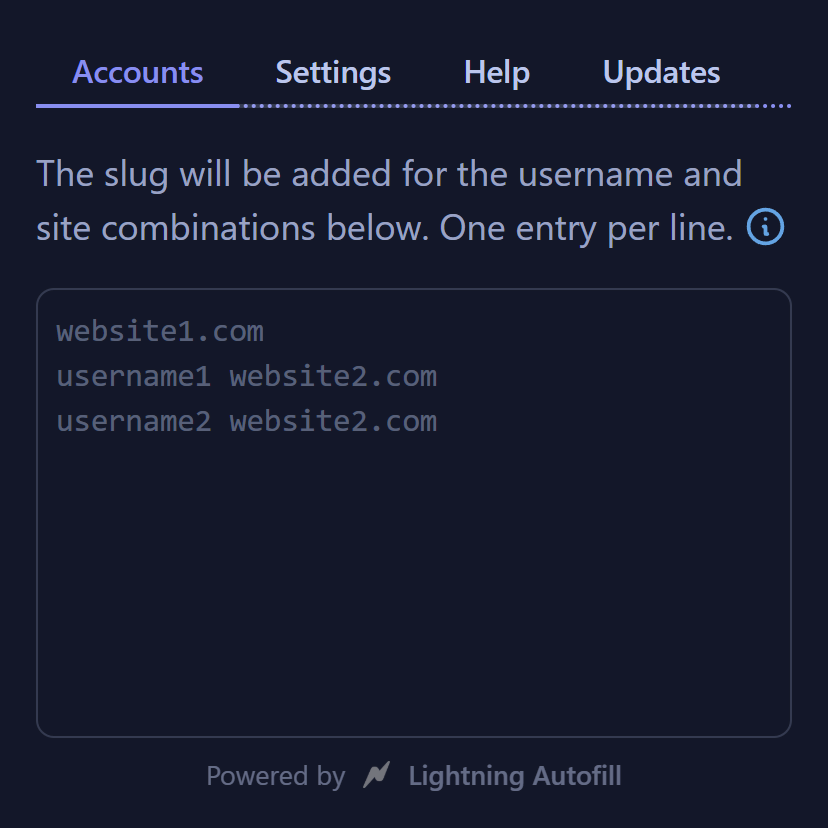
This is where you define these login forms using a combination of username and website (domain or URL).
When a login form has a matching username and website, the slug will be added to the password that is autofilled by your password manager.
Some things to note:
One entry per line.
The username is optional. If no username is entered, the slug will be added for all usernames on that site.
If a username restriction is used, separate the username and site with a space.
The username is an exact match while the website is a partial match against the URL. Both matches are case-sensitive, though you can force a case-insensitive match using regular expressions (see below).
If either the username or site is surrounded by forward slashes, then it will be treated as a regular expression, a powerful text matching syntax.
For example, /gmail|yahoo/ would match any URL containing “gmail” or “yahoo”; and /sam/i bigbank.com would match the username “sam”, “Sam”, or “SAM” on the bigbank.com site.
You can test your regular expressions at regex101.com.
Settings tab
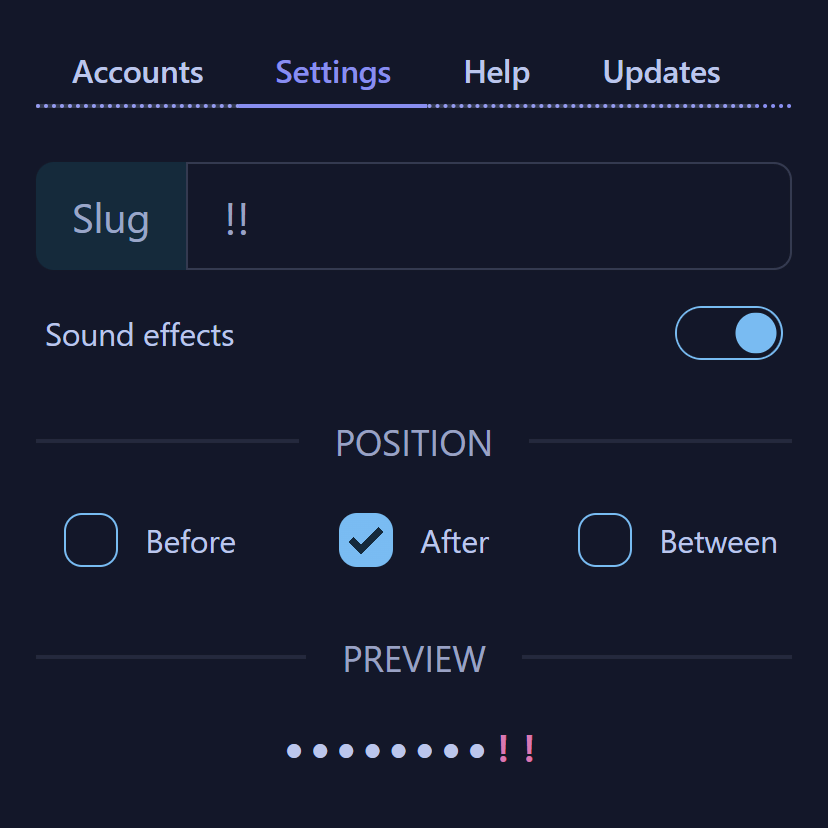
This is where you configure the slug that will be added to the password after it is autofilled by your password manager. Here is a description of each field:
Slug – the text to be added by Password Slug.
Sound effects – toggle for the lock sound that plays when a slug is added.
Even if this is disabled, you can still tell when the slug is added by the padlock (🔒) that appears on the Password Slug extension icon in the toolbar.
Position – the location in which to add the slug.
It can be prepended before the password, appended after the password, or inserted in between each character of the password.
Don’t forget to update the passwords in your accounts with the slug in the same position.
Preview – this shows you a preview of where the slug would be added.
Resize handles
When you move the mouse cursor over the left and bottom edges of the Password Slug popup, green resize handles will appear.
Grab and drag these around to resize the popup.
The popup dimensions are saved.
Context menu
Right-clicking on the Password Slug extension icon in the toolbar will bring up a context menu.
Toggle the “Enabled” option to quickly disable/enable the extension.
If Password Slug is disabled, its icon will be grayed out.
FAQ
Frequently asked questions.
How does Password Slug work?
Password Slug splits your password into two parts:
the portion stored by your password manager
the “slug”—stored separately by the extension
Whenever your password manager autofills a password field, Password Slug automatically adds the slug, forming the complete password.
This means that even if passwords in your password manager are stolen, hackers would only have part of the password.
It would get rejected, and they’d move on to the next target.
Now you can continue using your password manager even if it gets hacked, and sleep better at night knowing that you’re protected.
This is also covered in our intro video on the homepage.
I just installed Password Slug, but where the heck is it?
After installing Password Slug, it should show up in the Extensions menu (puzzle piece icon) on the toolbar.
You can also pin the Password Slug icon to the toolbar for quick access.
What web browsers are supported?
Password Slug is currently available for the following browsers:
How do I use Password Slug with LastPass?
Setting up Password Slug to work alongside LastPass is as simple as one-two-three:
For each account that you want to protect with Password Slug, enter the website’s domain or URL into the Accounts box (one per line). You can optionally restrict them by username as well.
Go to the Settings tab and enter the additional text (i.e., the “slug”) that will be added to your passwords into the Slug field. By default the slug is appended at the end of the password, but you can change the position to a combination of before, after, and in between.
Log in to the accounts that you listed in step 1 and update the passwords so that they include the slug that you defined in step 2. Note that the passwords stored in LastPass can be left untouched as the slug will be autofilled by Password Slug immediately after LastPass runs.
If you want us to walk you through this, then watch our video tutorial to see Password Slug in action.
The setup process above works with other password managers too.
You can use Password Slug with just about any password manager extension, or even your browser’s built-in password manager.
Please let us know if your password manager isn’t playing well with Password Slug.
If I factory reset my computer, will I lose my passwords?
No, the other part of the password (the “slug”) is something that YOU define, so you can never lose it unless you forget what the slug is.
Remember that you would add the same slug to all of your passwords, so there will always be only one text string to remember.
Even if you don’t have Password Slug installed, you can manually enter the slug yourself after the password manager autofills the incomplete password.
Password Slug is there to autofill the slug for you so you wouldn’t have to type it in manually.
Your Password Slug settings sync to your browser profile.
When you sign in to your browser on a new computer and install Password Slug, your settings will be restored.
How do I know Password Slug isn’t stealing my passwords?
First of all, Password Slug is an MV3 extension, which means it’s inherently safer since MV3 extensions can’t load or execute remotely hosted code.
Also, browser extensions do not have compiled code like desktop applications—they are written in plain text using HTML, CSS, and JavaScript, so you can inspect the source code for yourself.
In fact, we encourage you to do this to put your mind at ease before you start using Password Slug. Here’s how:
Go into all the subfolders and inspect the .js JavaScript source files. Search for the two ways in which Password Slug could communicate with remote servers: XMLHttpRequest and Fetch API.
You should see that there’s one Fetch call to an .md file, which is a plain text file in Markdown format used to publish our news updates.
Apart from that, Password Slug doesn’t have any other interactions with remote servers.
Does Password Slug track me or collect clickstream data in any way?
No, Password Slug doesn’t implement any sort of tracking or clickstream data collection.
We value privacy ourselves, so we respect other people’s privacy.
Please read our Privacy Policy for more information.
How did you build Password Slug?
Password Slug was created with love using Svelte, Vite, TypeScript, daisyUI (a Tailwind CSS plugin), and Showdown.
The underlying password autofill technology is provided by Lightning Autofill, the most popular autofill extension on the Chrome Web Store.